User Guide
About Medibook
MediBook is a desktop app for private nurse center nurses and managers , to manage patient and nurse records, optimized for use via a Command Line Interface (CLI), while still offering the benefits of a Graphical User Interface (GUI).
Designed for speed and efficiency, MediBook empowers private nurse centres to:
- Manage manpower by assigning nurses to patients.
- Manage checkup sessions and medical history of patients.
- Track and retrieve patient and nurse information quickly and as needed.
All within a user-friendly interface that is faster than traditional pen-and-paper or GUI-based systems. Get ready to revolutionize your private nurse centre management with MediBook, by getting started on a quick Installation Guide and exploring the Features of the app below!
Using this User Guide
This user guide is designed to help you get started with MediBook, and to provide a simple and concise reference if you need any help while using the app. You may click on the words in blue to jump directly to the relevant section of the user guide.
⚠️ Note: The word
personin this user guide refers to both patients and nurses, unless otherwise specified.
💡 Tip: If this is your first time using Medibook, we recommend running the command
listbefore and after running any commands to get the desired output.
To get an overview of the guide, you can refer to the Table of contents below.
Table of Contents
- About Medibook
- Using this user guide
- Table of contents
- Installation guide
- Overview of person attributes
- Features
- Viewing Help :
help - Adding a person :
add - Listing persons :
list - Editing a person :
edit - Assign a nurse to a patient :
assign - Delete nurse assignment from a patient :
assign delete - Finding persons :
find - Finding patient :
find patient of nurse - Finding nurse :
find nurse of patient - Schedule checkups :
schedule add for patient/schedule delete for patient - Viewing a nurse or patient :
view - Deleting a person :
delete - Clearing all entries :
clear - Exiting the program :
exit
- Viewing Help :
- Saving the data
- Editing the data file
- FAQ
- Known Issues
- Command Summary
- Duplicate Policy
- Colour Legend
Installation Guide
- Ensure you have Java
17or above installed in your Computer.
🧠 Why do I have to install Java?
- Java is a versatile programming language that lets apps run on any device with a Java Virtual Machine (JVM). Once installed, you can run any Java app, including MediBook. You can find out more about Java here.
- Download the latest
.jarfile from here. - Copy the file to an empty folder you want to use as the home folder for MediBook.
- MediBook will create a data folder in this home folder to store your data files.
- Open a command terminal, run the following commands:
cd home_folder
java -jar MediBook.jar
Example: if your
MediBook.jaris in the folderC:/Users/user/Documents, Run the commands:cd C:/Users/user/Documents java -jar MediBook.jarA GUI similar to the below should appear in a few seconds. Note how the app contains some sample data.
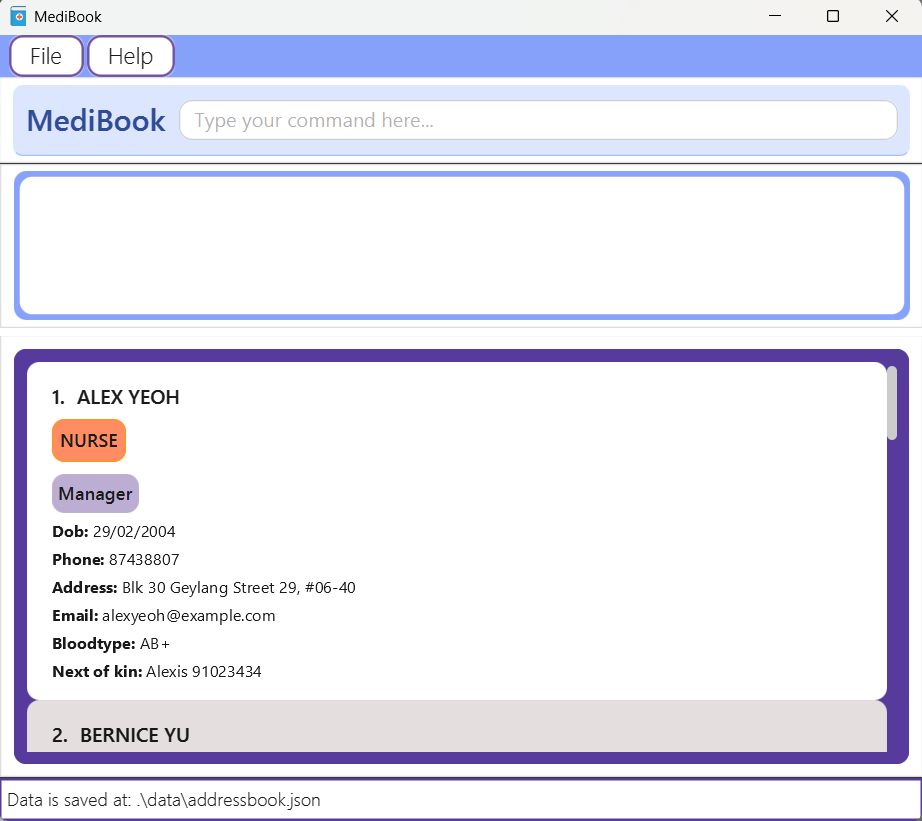 MediBook Start-Up Graphical User Interface
 -
Type the command in the command box and press Enter to run it. e.g. typing
helpand pressing Enter will open the help window.
Some example commands you can try:-
help: Opens the help window. -
add n/John Doe dob/01/01/2001 p/98765432 a/311, Clementi Ave 2, #02-25 b/AB+ ap/Patient t/Strong man: Adds a person namedJohn Doeto MediBook. -
list: Lists all persons in MediBook. -
edit 1 p/8549 9584 b/O+: Edits the phone number and blood type of the 1st person to be8549 9584andO+respectively. -
assign 6 4: Assigns the patient at index 6 to the nurse at index 4 in the currently shown list. -
assign delete David Li 6: Removes assigned nurse David Li from the patient at index 6. -
find alex david: Finds all person whose names containsalexordavid. -
find patient of nurse 4: Finds the patients assigned to the nurse at index 4 of the currently shown list. -
find nurse of patient 6: Finds the nurses assigned to the patient at index 6 on the currently shown list. -
schedule add for patient 6 11/07/2025 1400: Schedules a check-up for the patient shown at the 6th index of the currently shown list at the given date and time. -
schedule delete for patient 6 11/07/2025 1400: Deletes a check-up for the patient shown at the 6th index of the currently shown list at the given date and time. -
view 7: Displays the details of the person at the index 7 in the currently shown list. If the person is a patient with medical history, the medical history will also be shown. -
delete 2: Deletes the 2nd person shown in the currently shown list. -
clear: Deletes all persons in MediBook. -
exit: Exits the app.
-
- Refer to the Features below for details of each command.
Overview of Person Attributes
This section provides an overview of all the attributes a person in MediBook can have, including whether they’re required, what format they should follow, and any special notes.
| Attribute | Prefix | Required? | Valid Format | Example |
|---|---|---|---|---|
| Name | n/ |
✅ Yes | Alphabetical - Non consecutive special characters (hyphens, slash, apostrophes) - Spaces - Cannot start or end with a special character - Case-insensitive |
E.g., Joh'n-S/O-Doe |
| Date of Birth | dob/ |
✅ Yes | - Follows the format of dd/mm/yyyy- Accepts leap dates 29/02/2004- Invalid dates are not allowed 30/04/2002 |
E.g., 11/11/2003 |
| Phone Number | p/ |
✅ Yes | - Max allowable is 17 digits - Spaces are allowed, but each group requires min 3 digits - Only numericals and spaces are allowed, no other symbols are allowed |
E.g., 1234 567 890 |
| Address | a/ |
✅ Yes | - Free text - Case-sensitive |
E.g., 10 NUS Road, #03-21 |
| Blood Type | b/ |
✅ Yes | - Standard blood group types - Case-insensitive |
E.g., A+, AB-, etc. |
| Appointment Type | ap/ |
✅ Yes | - Appointment type of personnel - Case-insensitive |
E.g., Nurse or Patient |
e/ |
❌ Optional | - local-part@domain.com - Local-part (min 2 characters) with special characters (plus, underscore, dot, hyphen) - Local-part must start with alphanumeric character - Domain (min 1 character) - com can be replaced with minimum 2 characters |
E.g., john@example.com |
|
| Next of Kin | nok/ |
❌ Optional | - Name Phone - A space is required between Name and Phone - Name Same format constraints as the name attribute above - Phone Same format constraints as the phone number attribute above - Only one Next of Kin allowed |
E.g., Jane 91234567 |
| Tags | t/ |
❌ Optional | - Only alphanumeric and spaces allowed - Case-sensitive - Multiple tags allowed - Colour based |
E.g., 2 Smart |
| Medical History | m/ |
❌ Optional | - Alphanumerical and spaces - Special characters (commas, hyphens, slash, rounded brackets, colon) - Only allowed for patients - Multiple medical histories allowed |
E.g., (Very, sick): - urgent/needy12 |
| Checkups | (N/A) | ❌ Optional | Managed via schedule command - Each checkup is fixed 30 minutes - Checkups cannot be scheduled in the past. |
Not included in add and edit command |
⚠️ Note: Optional fields are marked with square brackets in command formats for readability. Do not include square brackets in your actual command input. ✅ Correct:
e/john@example.com❌ Incorrect:[e/john@example.com]
⚠️ Email Constraints: The email format given above is a simplified version, for tidiness, you can find the full constraints, through a warning message, when you enter an invalid email in the app.
Features
Notes about the command format:
-
Words in
UPPER_CASEare the parameters to be supplied by the user.
e.g. inadd n/NAME,NAMEis a parameter which can be used asadd n/John Doe. -
Items in square brackets are optional — do not include the brackets themselves when typing commands.
e.g.n/NAME [t/TAG]can be used asn/John Doe t/friendor asn/John Doe. -
Items with
… after them can be used multiple times including zero times.
e.g.[t/TAG]…can be used ast/friend,t/friend t/familyetc. -
Parameters can be in any order.
e.g. if the command specifiesn/NAME p/PHONE_NUMBER,p/PHONE_NUMBER n/NAMEis also acceptable. -
Extraneous parameters for commands that do not take in parameters (such as
help,exitandclear) will be ignored.
e.g. if the command specifieshelp 123, it will be interpreted ashelp. -
If you are using a PDF version of this document, be careful when copying and pasting commands that span multiple lines as space characters surrounding line-breaks may be omitted when copied over to the application.
Quick Navigation: Viewing Help • Adding a person • Listing persons • Editing a person • Assigning nurse to a patient • Delete nurse assignment from patient • Finding persons • Finding patient • Finding nurse • Schedule checkups • Viewing nurse or patient • Deleting person • Clearing all entries • Exiting program • Saving data • Editing data file •
Viewing help : help
Launches a popup window with a link to our User Guide. Clicking on Copy URL will copy the URL for you to paste
in your browser.

Help Pop-up Window
Format: help
Adding a person : add
Adds a person to the address book.
Details
- A person can have any number of tags and medical history (including 0)
- Medical history is only for patients, an error will occur if you try to add a nurse with medical history.
Format
add n/NAME dob/DOB p/PHONE_NUMBER a/ADDRESS b/BLOOD_TYPE ap/APPOINTMENT [e/EMAIL] [nok/NEXT_OF_KIN_NAME_PHONE] [t/TAG]… [mh/MEDICAL_HISTORY]…
Examples
add n/John Doe dob/01/01/2001 p/98765432 a/311, Clementi Ave 2, #02-25 b/AB+ ap/Patient t/Strong manadd n/Betsy Crowe dob/01/01/2001 t/friend e/betsycrowe@example.com a/Newgate Prison p/1234567 t/No Family mh/Insane, but not dangerous b/B+ ap/Patient
💡 Tip: You can refer back to here, for more details on the person attributes and their formats.
⚠️ Constraints: MediBook has a duplicate policy which you can view here.
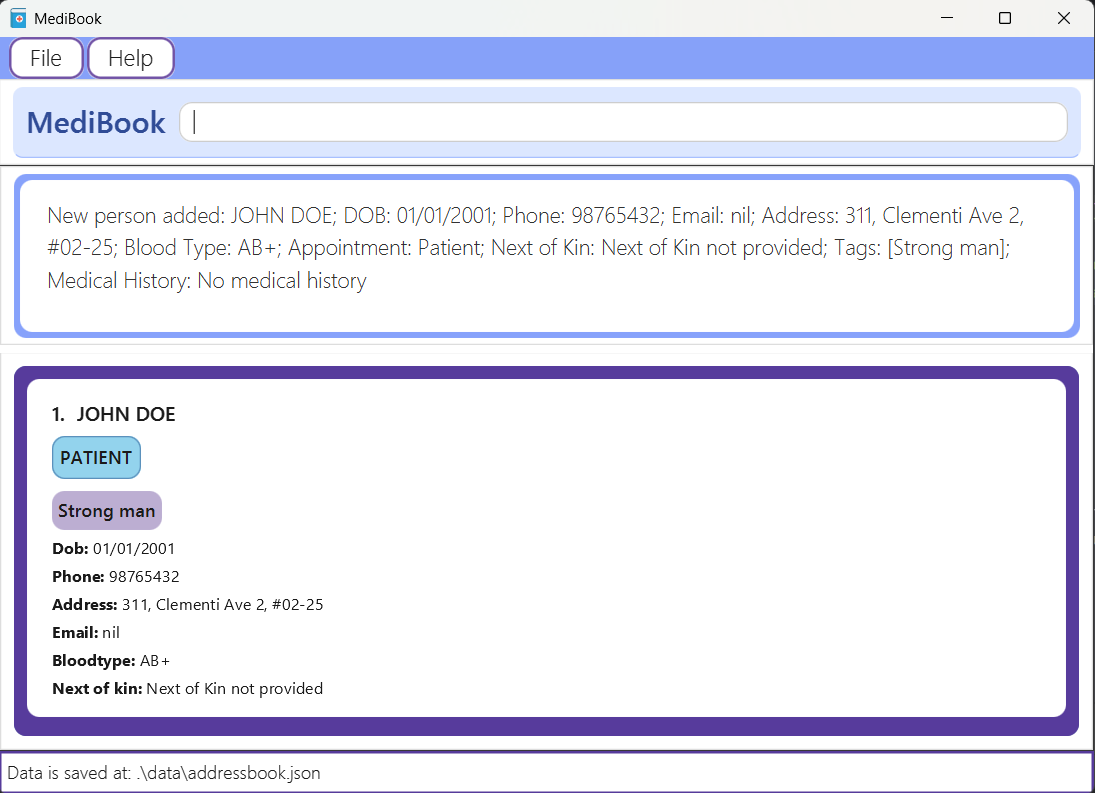
add n/John Doe dob/01/01/2001 p/98765432 a/311, Clementi Ave 2, #02-25 b/AB+ ap/Patient t/Strong man Command Execution
🔙 Back to Features 📋 View Person Attributes
Listing persons : list
Displays a list of persons in the address book. You can choose to list all persons, only patients, only nurses or all patients with checkups.
Formats
list: Lists all persons.list patient: Lists only patients.list nurse: Lists only nurses.list checkup: Lists all patients with checkups.
Examples
list: Shows every entry in the address book.list patient: Shows only persons with the appointment rolePatient.list nurse: Shows only persons with the appointment roleNurse.list checkup: Shows only the patients with scheduled checkups, sorted from earliest to latest checkup.
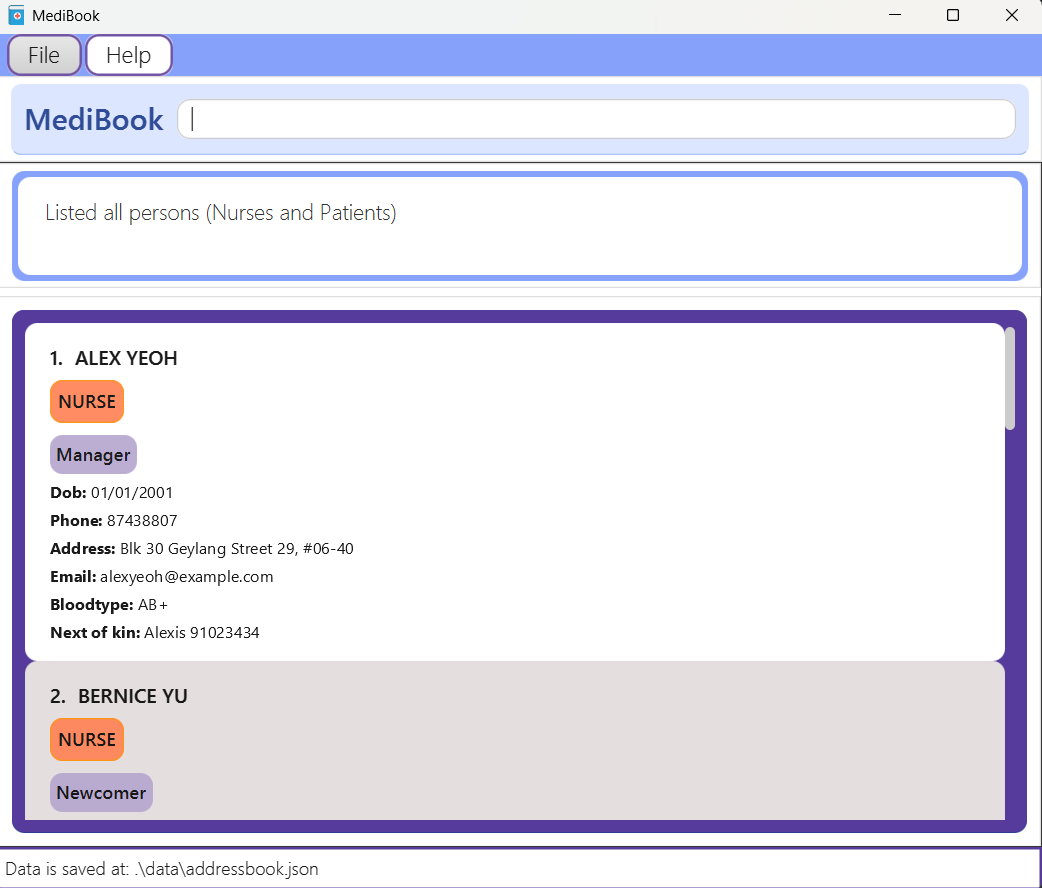
list Command Execution
Editing a person : edit
Edits an existing person’s information in MediBook.
Details
- Edits the person at the specified
INDEX. The index refers to the index number shown in the displayed person list. The index must be a positive integer 1, 2, 3,… - At least one of the optional fields must be provided.
- Existing values will be updated to the input values.
- When editing tags or medical history, the existing tags or medical history of the person will be removed i.e. tags or medical history is not cumulative.
- You can remove all the person’s tags by typing
t/without specifying any tags after it. - You can remove all the person’s medical history by typing
mh/without specifying any medical history after it. - Editing of medical history is only for patients, an error will occur if you try to add by editing in a medical history to a nurse.
- If a change of appointment is required, patient to nurse, do ensure medical history is cleared before changing appointment.
- If a change of appointment is required, nurse to patient, do ensure the nurse has no patients assigned to them before changing appointment.
- If a change of nurse name is required, do ensure the nurse has no patients assigned to them before changing name.
Format
edit INDEX [n/NAME] [dob/DOB] [p/PHONE] [e/EMAIL] [a/ADDRESS] [b/BLOOD_TYPE] [ap/APPOINTMENT] [nok/NEXT_OF_KIN_NAME_PHONE] [t/TAG]… [mh/MEDICAL_HISTORY]…
Examples
edit 1 p/8549 9584 b/O+Edits the phone number and blood type of the 1st person to be8549 9584andO+respectively.edit 1 p/91234567 e/johndoe@example.comEdits the phone number and email address of the 1st person to be91234567andjohndoe@example.comrespectively.edit 2 n/Betsy Crower t/ mh/Edits the name of the 2nd person to beBetsy Crowerand clears all existing tags and medical history.edit 3 t/one t/two mh/one mh/twoEdits the tags and medical history of the person at the third index to the respective values.
⚠️ Constraints: MediBook has a duplicate policy which you can view here.
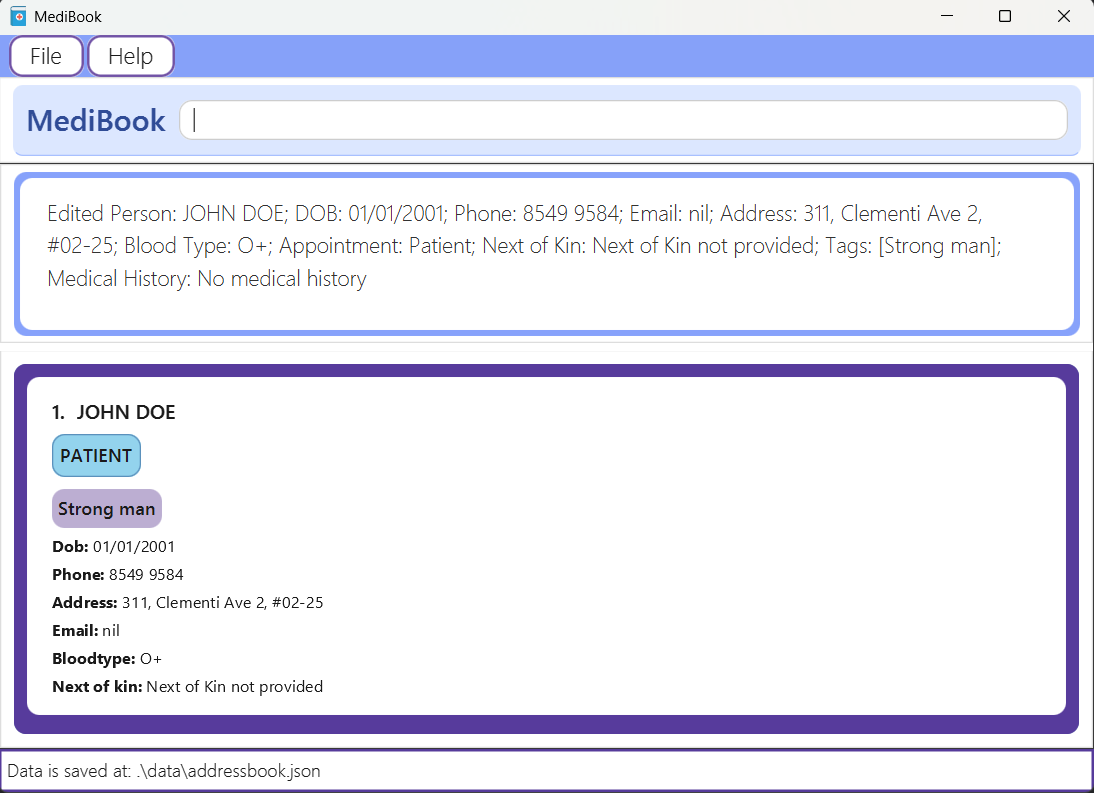
edit 1 p/8549 9584 b/O+ Command Execution
🔙 Back to Features 📋 View Person Attributes
Assign a nurse to a patient : assign
Assigns a specified nurse to a specified patient.
Details
- Assigns the nurse at
NURSE_INDEXto the patient atPATIENT_INDEX. NURSE_INDEXandPATIENT_INDEXboth refer to the index number shown in the displayed person list.- At most 2 nurses can be assigned to one patient.
- The index must be a positive integer 1, 2, 3, …
Format
assign PATIENT_INDEX NURSE_INDEX
Examples
assign 6 4assigns the nurse at index 4 to the patient at index 6.
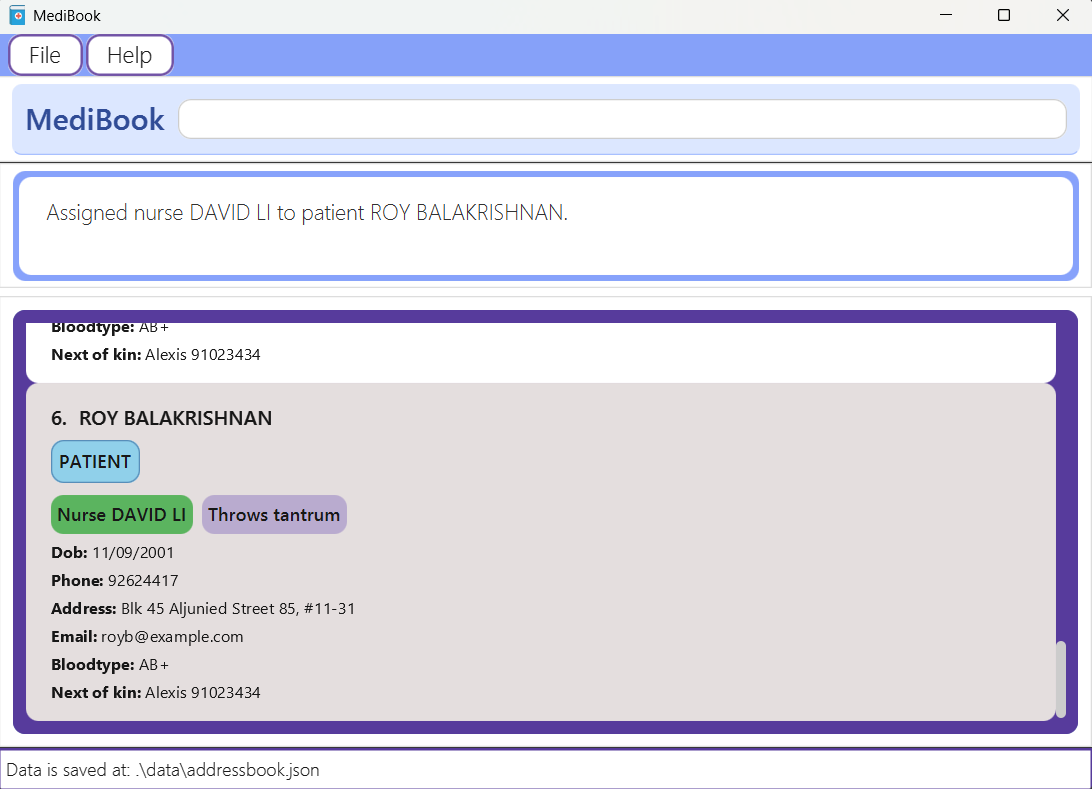
assign 6 4 Command Execution
Delete nurse assignment from a patient : assign delete
Removes a specified assigned nurse from a specified patient.
Details
- Removes the assigned nurse with name
NURSE_NAMEfrom the patient atPATIENT_INDEX. NURSE_NAMEneeds to match the full name shown on the patient’s assigned nurse tag, but is case-insensitive.PATIENT_INDEXrefers to the index number shown in the displayed person list.- The index must be a positive integer 1, 2, 3, …
Format
assign delete NURSE_NAME PATIENT_INDEX
Examples
assign delete David Li 6removes the assignment of Nurse JOHN DOE from the patient at index 2.
Finding persons : find
Finds persons whose names contain any of the given keywords or prefixes.
Details
- The search is case-insensitive. e.g.
hanswill matchHANS - The order of the keywords does not matter. e.g.
Hans Bowill matchBO HANS - Only the name is searched.
- Any name containing the prefix will be matched e.g.
Hanandnswill matchHANS - Persons matching at least one keyword will be returned (i.e.
ORsearch). e.g.Hans Bowill returnHANS GRUBER,BO YANG
Format
find KEYWORD [MORE_KEYWORDS]
Parameters
KEYWORD: The keyword to search for in a person’s name. Maybe a full or partial name.[MORE_KEYWORDS]: Additional keywords (optional) to further find more than one person.
Examples
find alex davidreturnsALEX YEOH,DAVID LIfind JohnreturnsjOHNandJOHN DOEfind alreturnsALEX YEOHandSALLY
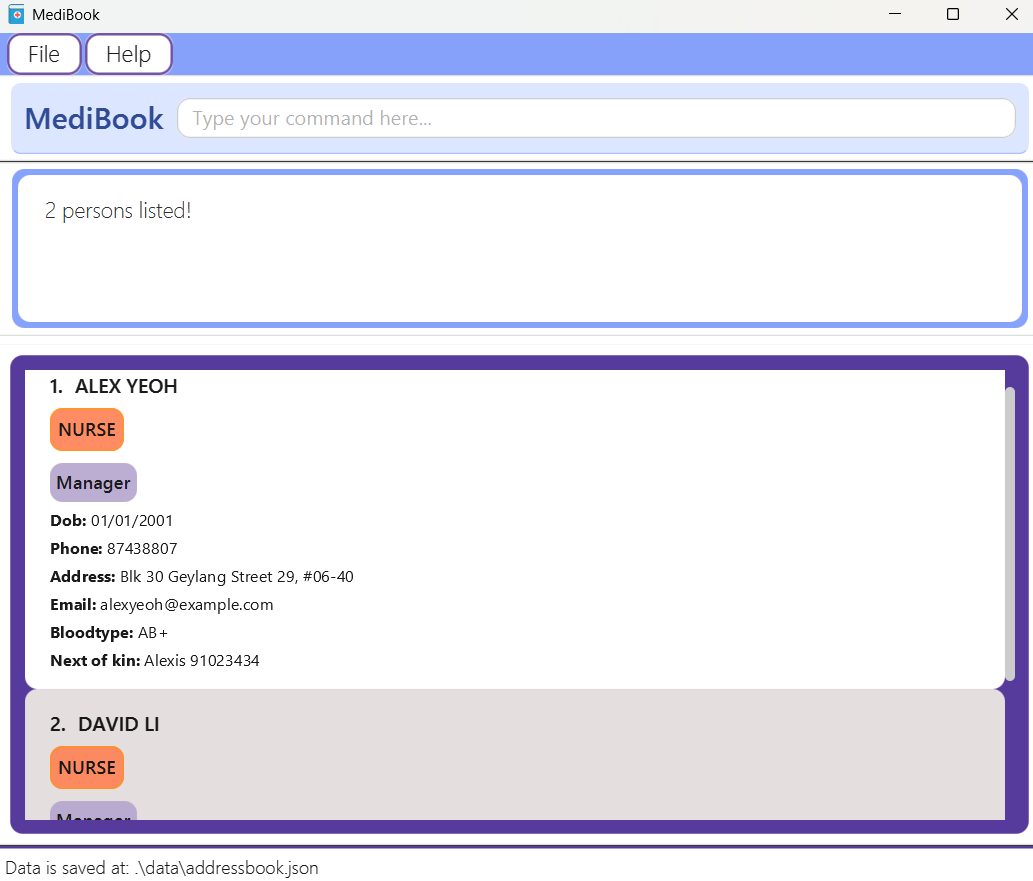
find alex david Command Execution
Finding patient : find patient of nurse
Finds patients assigned under a specified nurse.
Details
- Finds patients assigned to the nurse at
INDEX. - If no patients are assigned to the nurse, the program will return that no patients were found.
Parameters
- The index refers to the index number shown in the displayed person list.
- The index must be a positive integer 1, 2, 3, … and be within the total number of person in the list.
Format
find patient of nurse INDEX
Examples
find patient of nurse 4returns e.g: Patient(s) assigned to nurse DAVID LI: JOHN DOE.find patient of nurse 3returns e.g: No patient assigned to the nurse at index 3.
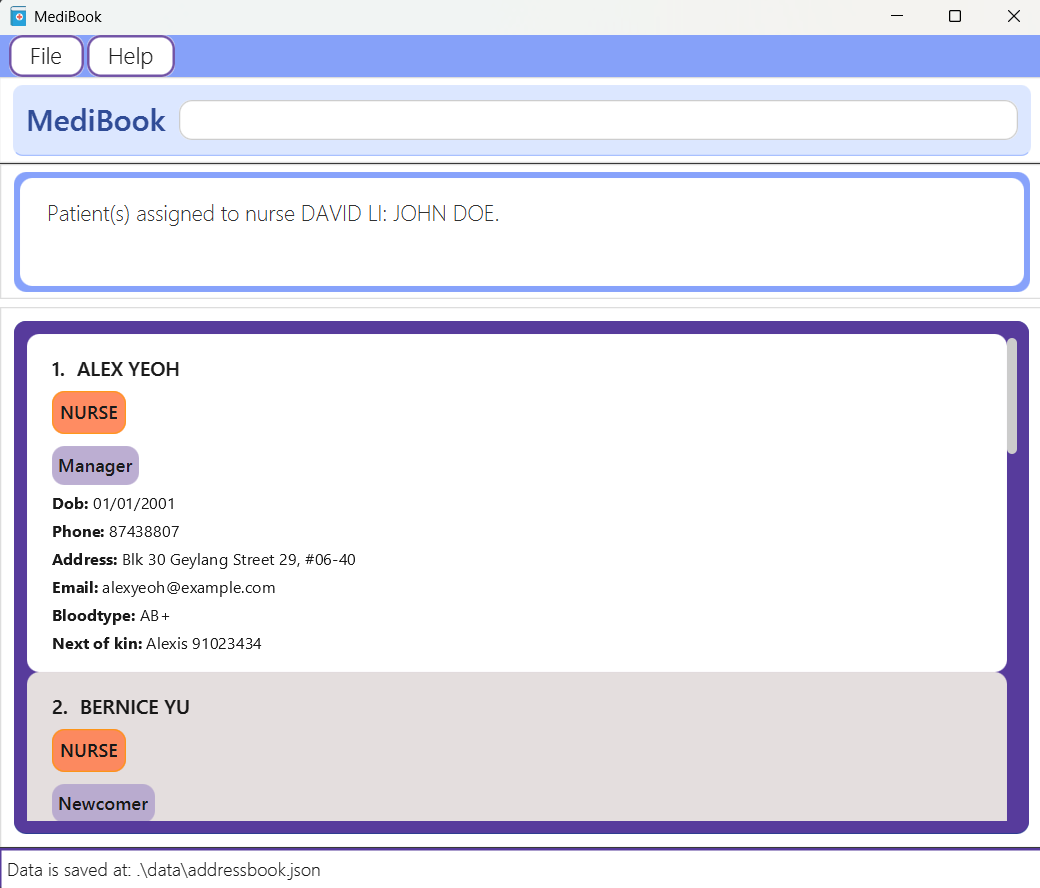
find patient of nurse 4 Command Execution
Finding nurse : find nurse of patient
Finds nurse(s) assigned to a specified patient.
Details
- Finds nurse at assigned to the patient at
INDEX. - If no patients are assigned to the nurse, the program will return that no patients were found.
Parameters
- The index refers to the index number shown in the displayed person list.
- The index must be a positive integer 1, 2, 3, … and be within the total number of person in the list.
Format
find nurse of patient INDEX
Examples
find nurse of patient 6returns e.g: Nurse(s) assigned to patient JOHN DOE: DAVID LI.find nurse of patient 7returns e.g: No nurse assigned to the patient at index 7.
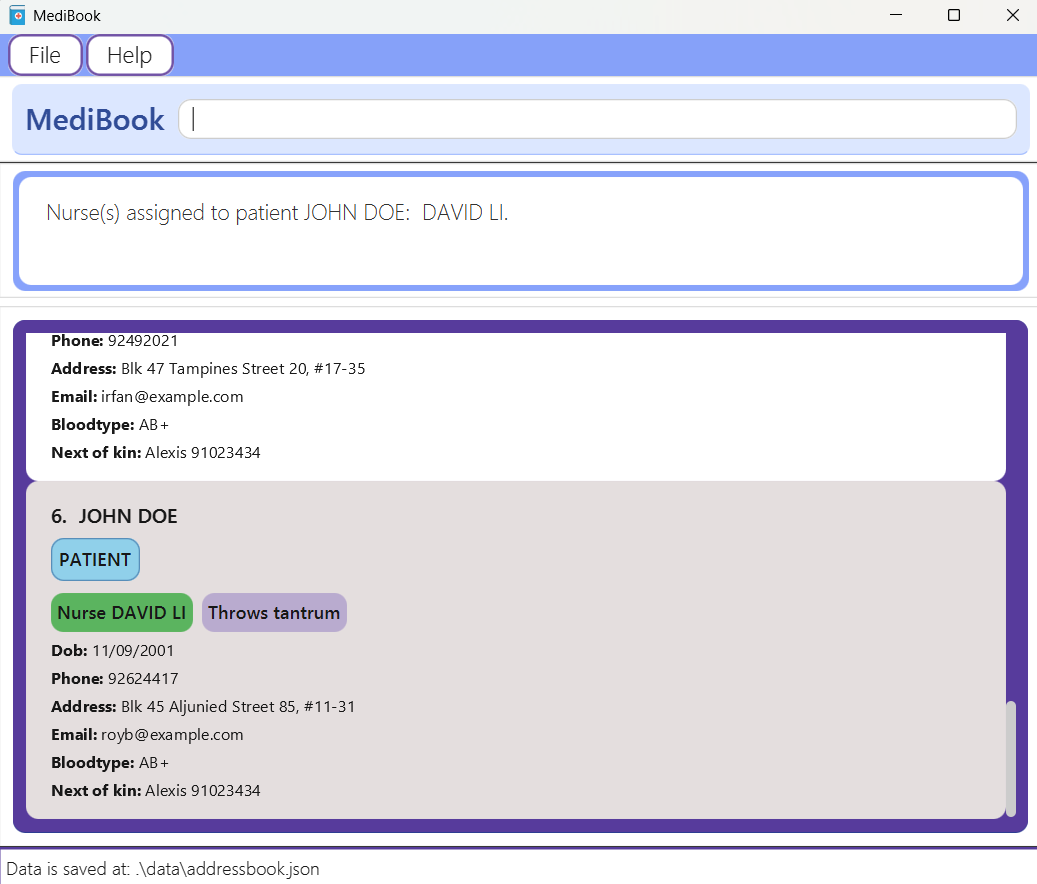
find nurse of patient 6 Command Execution
Schedule Checkups : schedule add for patient / schedule delete for patient
Schedules or deletes checkup sessions for patients.
Details
- Checkups cannot be scheduled for:
- Dates or times in the past (as of the current date and time).
- Times outside of working hours (9:00 AM to 5:00 PM).
- Times that are not in 15-minute increments (e.g.,
00,15,30,45). - Times that are within 30 minutes of an existing checkup.
- Default timing checkups are for 30 minutes.
- The date and time must be in the format
DD/MM/YYYY HHMM. - A warning will be issued if the target patient doesn’t have an assigned nurse.
Actions
- Add checkup: Schedules a new checkup session.
- Delete checkup: Removes an existing checkup session.
Format
- Add checkup:
schedule add for patient INDEX DATE TIME - Delete checkup:
schedule delete for patient INDEX DATE TIME
Parameters
INDEX: Refers to the index number of the patient in the displayed list. The index must be a positive integer (1, 2, 3, …) and be within the total number of person in the list.DATE: The date for the checkup, inDD/MM/YYYYformat.TIME: The time for the checkup, inHHMMformat (24-hour clock).
Examples
schedule add for patient 6 11/07/2025 1400: Schedules a checkup for the patient at index 6 on July 11, 2025, at 14:00 PM.schedule delete for patient 6 11/07/2025 1400: Deletes a checkup for the patient at index 6 on July 11, 2025, at 14:00 PM.
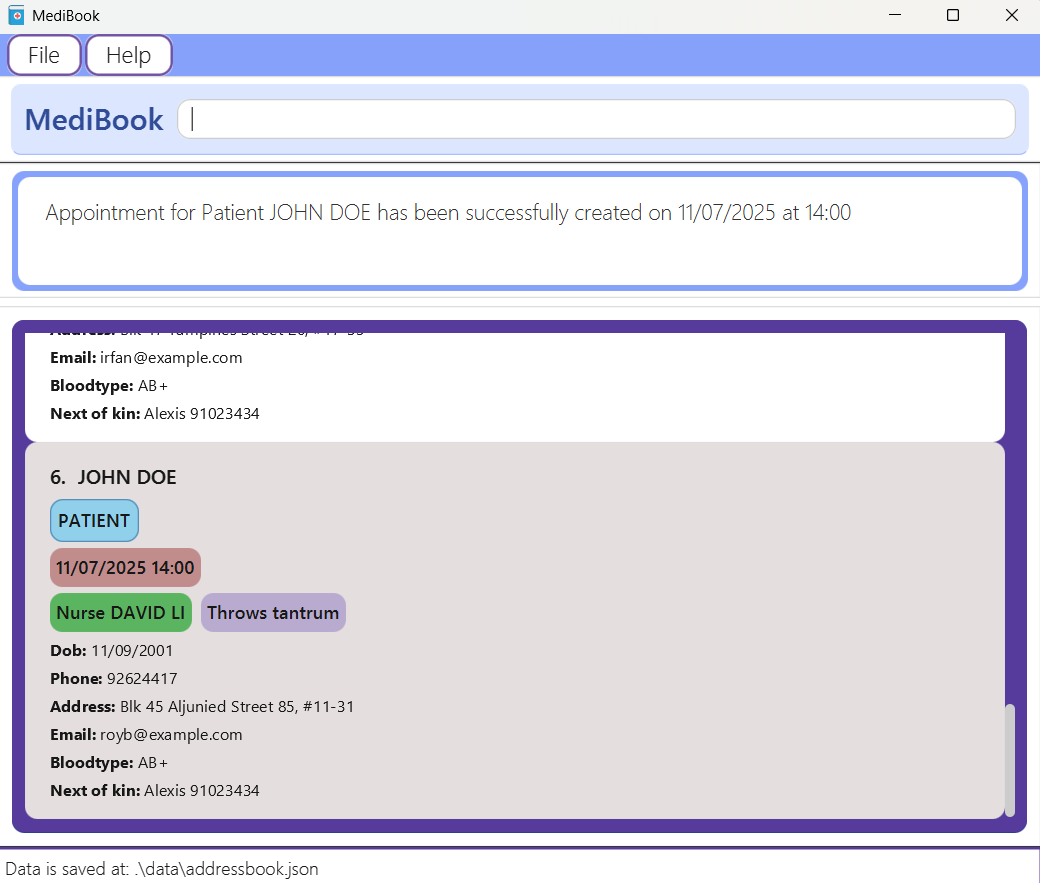
schedule add for patient 6 11/07/2025 1400 Command Execution
Viewing a nurse or patient : view
Displays details of specified person. If specified person is a patient with medical history, the medical history will be shown in the result display box.
Details
- Displays the details of the person at
INDEX. - If the person is a patient, then the patient’s medical history is shown (if any).
- The index refers to the index number shown in the displayed person list.
- The index must be a positive integer 1, 2, 3,… and be within the total number of person in the list.
Format
view INDEX
Example
view 7: Views the 7th person in the list and displays the person’s details. If the person is a patient and has medical history, then medical history will be shown.
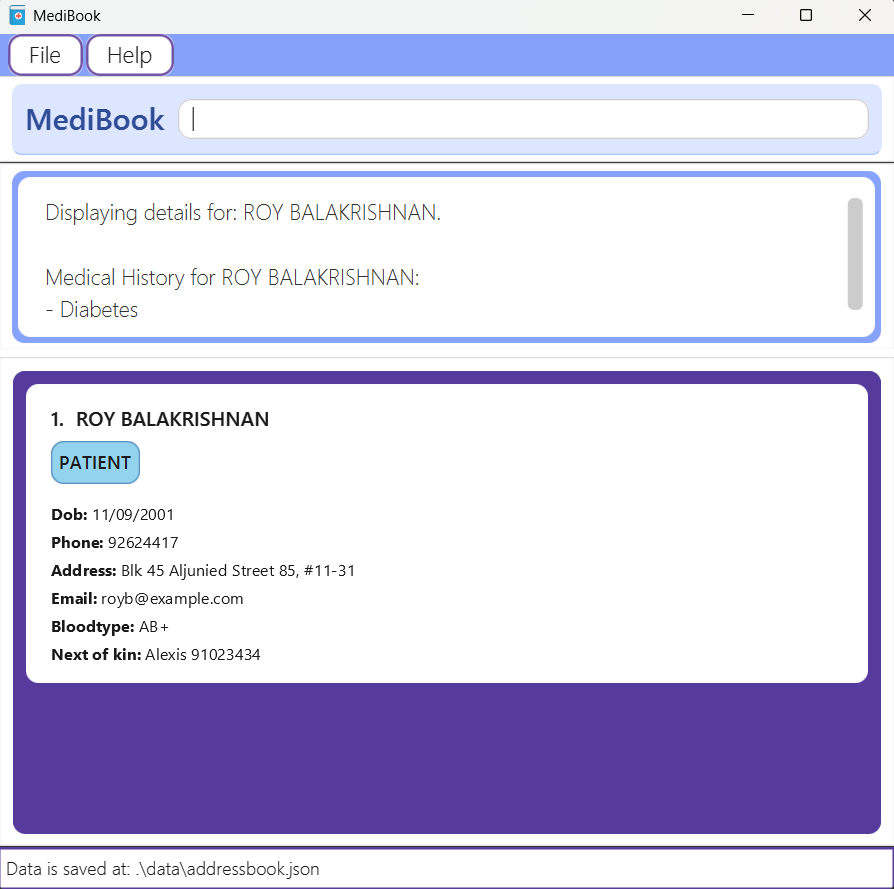
view 7 Command Execution
Deleting a person : delete
Deletes the specified person from the address book.
Details
- Deletes the person at the specified
INDEX. - The index refers to the index number shown in the displayed person list.
- The index must be a positive integer 1, 2, 3,… and be within the total number of person in the list.
Format
delete INDEX
Example
listfollowed bydelete 2deletes the 2nd person in the address book.find Betsyfollowed bydelete 1deletes the 1st person in the results of thefindcommand.
Clearing all entries : clear
Clears all entries from the address book.
Format
clear
Exiting the program : exit
Exits the program.
Format
exit
Saving the data
MediBook data are saved in the hard disk automatically after any command that changes the data. There is no need to save manually.
Editing the data file
MediBook data are saved automatically as a JSON file [JAR file location]/data/addressbook.json. Advanced users are welcome to update data directly by editing that data file.
Caution:
If your changes to the data file makes its format invalid, MediBook will start with an empty data file at the next run and replace the corrupted data upon any action that changes the data. Hence, it is recommended to take a backup of the file before editing it.
Furthermore, certain edits can cause the MediBook to behave in unexpected ways (e.g., if a value entered is outside of the acceptable range). Therefore, edit the data file only if you are confident that you can update it correctly.
🔙 Back to Features 🔝 Back to Table of Contents
FAQ
Q: How do I check my current Java version?
A: Open a command terminal and type java --version. If you see a version number, Java is installed.
If not, you need to install Java.
Q: What is the command terminal?
A: The command terminal is a program that allows you to interact with your computer using text commands. For Windows, you can use Command Prompt or PowerShell. For Mac, you can use Terminal. You can find the command terminal by searching for it in your computer’s search bar. To find out more, you may read this article.
Q: How do I transfer my data to another Computer?
A: Install the app in the other computer and overwrite the empty data file it creates with the file that contains the data of your previous AddressBook home folder.
Known issues
- When using multiple screens, if you move the application to a secondary screen, and later switch to using only the primary screen, the GUI will open off-screen. The remedy is to delete the
preferences.jsonfile created by the application before running the application again. - If you minimize the Help Window and then run the
helpcommand (or use theHelpmenu, or the keyboard shortcutF1) again, the original Help Window will remain minimized, and no new Help Window will appear. The remedy is to manually restore the minimized Help Window.
Command summary
| Action | Format, Examples |
|---|---|
| Help | help |
| Add | add n/NAME dob/DOB p/PHONE_NUMBER a/ADDRESS b/BLOOD_TYPE ap/APPOINTMENT [e/EMAIL] [nok/NEXT_OF_KIN_NAME_PHONE] [t/TAG]… [mh/MEDICAL_HISTORY]…e.g., add n/John Doe dob/01/01/2001 p/98765432 a/311, Clementi Ave 2, #02-25 b/AB+ ap/Patient t/Strong man |
| List | list list nurse list patient list checkup |
| Edit | edit INDEX [n/NAME] [dob/DOB] [p/PHONE] [e/EMAIL] [a/ADDRESS] [b/BLOOD_TYPE] [ap/APPOINTMENT] [nok/NEXT_OF_KIN_NAME_PHONE] [t/TAG]… [mh/MEDICAL_HISTORY]… e.g., edit 1 p/8549 9584 b/O+ |
| Assign | assign PATIENT_INDEX NURSE_INDEXe.g., assign 6 4 |
| Assign Delete | assign delete NURSE_NAME PATIENT_INDEXe.g., assign delete David Li 6 |
| Find | find KEYWORD [MORE_KEYWORDS]e.g., find James Jake |
| Find Patient | find patient of nurse INDEXe.g., find patient of nurse 4 |
| Find Nurse | find nurse of patient INDEXe.g., find nurse of patient 6 |
| Schedule | schedule add for patient PATIENT_INDEX DATE_TIMEe.g., schedule add for patient 6 11/07/2025 1400schedule delete for patient PATIENT_INDEX DATE_TIMEe.g., schedule delete for patient 6 11/07/2025 1400 |
| View | view INDEXe.g., view 7 |
| Delete | delete INDEXe.g., delete 2 |
| Clear | clear |
| Exit | exit |
Duplicate Policy
MediBook allows all persons to have nearly identical attributes using the edit and add commands. However, a warning message will be shown, if it results in having two person sharing all of these attributes: Name, Date of Birth and Phone Number.
Example:
- Using
editcommand to change theNameof a person to an existingNamewhile having the sameDate of BirthandPhone Numberwill result in a warning message. - Using
addcommand to add a person with the sameName,Date of BirthandPhone Numberas an existing person will result in a warning message.
Colour Legend
| Field | Colour |
|---|---|
| Patient Appointment | Light Blue |
| Nurse Appointment | Orange |
| Tag | Light Purple |
| Checkup | Light Brown |
| Assigned Nurse | Green |